
The Hero Calendar and Excursions feature allows staff members to schedule internal and external school events. This includes the ability to:
- document the risks involved (including uploading documents)
- request and update student permissions
- define and select event options
- bill and accept payments for related costs
- interact with caregivers via the Hero app
- print required event lists
Any school staff member is able to create a new event in the calendar but only designated staff members are able to approve these. School Hero Administrators can set this permission for any staff member (excluding those with a Restricted page access level) - Giving a Staff Member Permission to Approve Calendar Events
TO CREATE A NEW EVENT
- Click on the Calendar Icon in the Hero top toolbar
- You will see all existing events. These are colour coded based on their current status.
- Select the VIEW that works best for you
- Click the Calendar on the date your event is to take place or begin
STEP BY STEP CREATION PROCESS
Navigation
This section will take you through each of the screens associated with setting up an event. At any time from Step 3 onwards, you can exit the process by clicking the SAVE & EXIT. This will retain all information already entered. To come back to it see Editing an Existing Calendar Event
To continue to the next screen, click NEXT.
STEP 1: CREATE - Select the Event Type as your starting point
Each event type has different pre-set banners and settings. These can be customised for your new event. Based on the event type, some options will be mandatory (i.e. ticked and disabled)
- Visible to Caregivers - Will allow the event to be open to caregivers to view and respond, via the Hero App
- Requires Permission - Allows the ability to assign permissions relating to the event that caregivers will be required to respond to on a student by student basis
- Requires Options - Allows the ability to create options for caregivers to choose (e.g. Lunch or activity options)
- Requires Approval - the event must be approved by a staff member with permission to approve events
- Requires Risk Analysis - a risk analysis must be completed for this event
- Includes Payment - payment information and processing is included for this event
Event Type Defaults
Note: Include Curriculum Content is not currently available
- Offsite Excursion - for EOTC trips outside the classroom
-
In School Event - for events held on school grounds
-
Fundraising Event - an event in which caregivers will pay something towards school fundraising
- Social Event - e.g. school disco
-
Sporting Event - a sports event that caregivers need to be aware of
- Cultural Event - a cultural event, concert or performance that caregivers need to be aware of
- Assembly - a school assembly or prize-giving that caregivers need to be aware of
-
Staff Meeting - For an event for staff members to attend
Note: While a staff event would not include students, you will still need to specify a group when setting up your event. You may like to set up a dedicated staff group/s for this purpose (Creating a Group)
-
Student Event - For an event for students to attend along with staff members
- Custom - a starting point for any school event
Make any changes to the settings required for your event by selecting or unselecting the setting check boxes
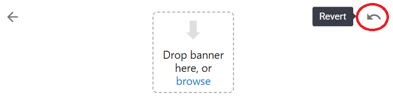
To customise the banner image of the event click the Pencil Icon. Either drag and drop a new image file onto the upload box, or click browse to select a file from your device. The optimal size for your event banner is 1500 x 400px. Images can be a .jpg, .jpeg or .png file.
If you remove the default banner and wish to reinstate it, click the Revert icon.
STEP 2: DEFINITION - What, where, who and how?
- Event Title - enter the title to be displayed in the calendar and on all staff and caregiver notices.
- Start and End Dates - click the default date to edit the date and/or time.
- Location - type the location of your event OR select a school-based location from the existing Location register. A location from the Location Register will override an alternative entry. To edit your Location Register see Adding and Maintaining School Locations.
- Mode of Transport (optional) - type the mode of transport.
-
What groups does this event relate to? - select any group of students that this event relates to. Teachers of these groups will also be added to the event. A group can be removed or changed up until the time that an event is Aprroved or Open to Caregivers (if no approval is required)
Note: A group is required to be entered for staff only events even though this will not involve any students. We recommend setting up a shared group with no students and add the relevant staff members for this purpose - Creating a Group
- Add any other staff members that will be involved in this event - select any additional staff members.
- MUTE Staff Reminders - decide if these staff should receive notifications relating to the event. Turn ON the slider to prevent staff notifications. Leave the slider OFF if staff should receive notifications.
- Maximum Student Attendees - if an event has limited availability, set the maximum student attendees limit (this does not count staff or helpers). Once the limit is reached, caregivers will not be unable to select ‘Going’ for any further students.
STEP 3: DESCRIPTION - Information for staff and caregivers
Save yourself valuable time by having standard templates pre-created in the template library.
- See Managing Event Templates in the Events Library
Select an existing template from the library as your starting point or simply use the text entry box to enter the details about your event. If open to caregivers, this information is what they will see, so utilise the formatting options available.
STEP 4: PERMISSIONS - This tab will be present if ‘Requires Permission’ or ‘Requires Options’ has been ticked. Here you will set up required permissions, options and an optional deadline date. Utilise the preview to see what the caregiver will see.
- Search Event Permissions - these are additional permissions that the caregiver needs to provide approval for. If the permission will incur an additional cost, it needs to be created as an Event Option.
Note: DO NOT add a permission that indicates the ‘Intention to Attend’. This will automatically exist if ‘Requires Permission’ was ticked at Step 1.
- Search Student Permissions - student permissions are those that already exist on the student information tabs e.g. ‘EOTC Trip Permission’’. The caregiver will see the current settings and will be able to change it for the purpose of this event. They will also have the option to request a permanent change to the student record. For a field to be available for inclusion as a student permission it needs to be defined as a permission under Manage Fields. See Managing Student Permissions for use in Events
- Search Event Options - these are choices that a caregiver needs to make e.g. activity choice, food choice, equipment required for an activity. Where a permission is usually a Yes/No, an option can be any type including numbers. i.e. How many sausages? An Event Option can also have an associated additional cost and choice limits.
- Allow Caregiver Comments - set this slider to ON if a caregiver is able to provide additional comments via the caregiver app. These can be viewed by school staff.
- Allow Responses Until - set the date and time deadline for caregiver replies. After this time a caregiver will be unable to respond. This date/time is also used to trigger caregiver response reminders. If left blank, the end date of the event will be used for the same purpose.
To Select/Create a Permission
- Hit the Spacebar to select a permission from the Permissions’ library OR Click the Plus icon to create a new permission.
- On clicking the Plus you will see a list of the permissions already existing in the Permissions library. Hover over the permission to view the associated options to determine if it can be utilised for this event.
-
To use an existing permission, click the permission button.
Note: It is not possible to edit a permission that has been obtained from the library.
-
To create a new permission, complete the required parameters and add the options
- Permission Label - what the school sees. Keep it short, as it will show in the permission tables and reports.
- Permission Label (caregivers) - what the caregiver sees. Ask the question that you wish the caregiver to answer.
-
Permission Type/Options - select the type and add the options as you would under Manage fields (Creating and Managing Student Information Fields).
For more detailed information on permission types and options see Managing Event Permissions in the Events Library
- All new permissions will be added to the Permissions Library.
- If you make a mistake when adding a new permission, it can be edited up until the time it has been used in an event. Click the permission button to edit.
To Select/Create an Option
- Hit the Spacebar to select a permission from the Options’ library OR
- Click the Plus icon to create a new option.
- The process of creating a new option is the same as that above for permissions but would generally have a different type. - See Managing Event Options in the Events Library
Sorting Permissions and Options
Sort the display order of permissions and options by clicking the sort button. This will only be visible if multiple entries exist.
Drag the entries into the correct order then click the sort button to finish sorting
PREVIEW - see what the caregiver sees and set permission and option parameters.
As permissions and options are created above, they will become visible in the Preview. Use this to ensure that the caregiver is seeing the desired result.
Set the available sliders:
- Mandatory - the permission/option MUST be entered by the caregiver in order to complete the response
- Incurs Additional Cost - Click this slider to ON if the option will incur an additional cost. Billing information will need to be added in Step 6: Payments
- Set Limits - Click SET LIMITS if availability for the different choices is limited. You can set an overall total limit and/or individual limits. These do not have to add up as the individual items may exceed the total limit. Caregivers will see a count of items remaining.
STEP 5: RISKS - This tab will be present if ‘Requires Risk Analysis’ has been ticked. It allows the user to add/upload risk analysis information.
Save yourself valuable time by having standard risk assessment templates pre-created in the Events Library. See Managing Event Risk Assessment Templates in the Events Library
When adding a risk it is necessary to acknowledge understanding of the processes and procedure.
Select an existing risk template from the library as your starting point or simply use the text entry box to enter the risk analysis for this event.
- Risks - Hit Space to select a risks assessment from the Risks library. Selecting an existing risk, will add the details to the text box. These can be tailored to suit the requirements of this event. To add a new risk assessment to the library, see Managing Event Risk Assessment Templates in the Events Library
- Text Box - Edit or manually enter the risk assessments for this event. Utilise the formatting and table features available.
- Document Attachments - as for posts, you are able to add images, videos and files in the usual way as well as being able to embed from Drive.
STEP 6: PAYMENTS
Terminology Note: The term 'Ledger Item' relates to schools outside of NSW. For schools in NSW, 'Fee Mapping' replaces Ledger Item. All screens use the relevant terminology when creating events.
This tab will be present if ‘Requires Payment’ has been ticked. It allows the Finance Officer to allocate ledgers, create ledger items/fee mappings and costs for this event. It DOES NOT create associated Line Items. These are created automatically when a caregiver interacts with the permission to attend OR an option that ‘Incurs an Additional Cost’.
A Non-admin staff member can enter a proposed cost and/or note but only a staff member with Hero Administration access can assign the Ledgers and complete the Payments tab.
Note: Finance detail forms part of the approval process so cannot be altered once an event is Approved or Open to Caregivers (if approval is not required)
If the event has not yet been saved, you will be asked to SAVE & CONTINUE before entering any payment details.
Starting Point Administrator View - No details entered at this stage
Proposed Costs (Teacher View) - staff member has entered proposed cost information
Administrator/Finance Officer View - the finance officer/administrator has created the required ledger items/fee mappingss. Note: If no cost is to be incurred for an option choice, it is best to leave the Ledger Item/Fee Mapping blank. It is possible to enter a zero cost but doing so will create an unnecessary line item.
NZ and other Non-NSW Schools' View
NSW Schools' View
Adding Payment Details to an Event
Before an event can be open to caregivers, all required payment information must be entered. This includes the required ledgers items/fee mappings and costs.
The screen is divided into 3 sections:
- A summary of all ledger items/fee mappings created for this event
- The ledger items/fee mappings and costs related to the ‘intention to attend’
- The ledger items/fee mappings and costs related to the options
At the very top of the screen you have the option to force a caregiver to pay immediately in order to grant permission for their child to attend. This option will be disabled if caregivers are not viewing finances OR Stripe is not enabled (NZ Schools only). Note: clicking this option would not be the norm for NZ schools.
How this works: When the caregiver completes the permissions and options in the caregiver app they will have to action the PAY NOW process. Failing to do this will result in the permission being ‘Pending’ subject to payment.
Establish the Ledger Items for this event
Start with the ‘Intention to Attend’.
1. Click the GREEN + icon to create a Ledger Item/Fee Mapping for this event.
2. The regular Finance > Ledger Item/Fee Mapping create process will be activated. The name of the Ledger Item/Fee Mapping will default to the name of the event. Enter the cost and set the required parameters.
3. On clicking SAVE LEDGER ITEM/FEE MAPPING, the item will show in the ‘Intention to Attend’ section as well as the summary at the top.
4. It is possible to add no Ledger Items/Fee Mapping under 'Intention to Attend' if attending does not incur a cost. It is also possible to add multiple ledger items for this step. This may be necessary if a deposit is non-refundable (NSW only) or perhaps there is a take home element that needs to be applied to a different ledger. Click the GREEN icon below the existing detail to add an additional ledger item.
Next, add the ‘Options’ ledger information.
5. For each of the option choices that incur a payment you will need to either:
- select a Ledger Item/Fee Mapping already allocated to this event (i.e. showing in the summary) - the description will be populated with the option choice. Set the cost for this option choice.
OR
-
create a new Ledger Item/Fee Mapping for this event option.
To create a new option, click the Green + icon beside the option and complete the create screen. The Ledger Item/Fee Mapping will default to the event name plus the option. The description will be the option choice. Set the cost for this option choice. The new ledger item will be added to the summary and can be used for the next option choice.
Note: If an option choice is not going to incur a cost, leave the Ledger Item on that choice blank i.e. (No to 'going on the bus' or 'No lunch')
6. Click SAVE EVENT when all payment details have been entered.
7. If you create a Ledger Item/Fee Mapping incorrectly you can remove it from any section by clicking the X. The X will only be available in the summary if the Ledger Item/Fee Mapping is has not been used for any permissions or options.
If you would like to edit your draft event see Editing an Existing Calendar Event
Your event is now ready to enter the next stage of being sent for approval or opening to caregivers and staff. For next steps see Changing the Status of a Calendar Event
Comments
0 comments
Article is closed for comments.